# Slideshow
In the theme editor **(Customize) => Section**, click **Slideshow**
If you want to change the style slideshow => [**Style Slideshow**](https://thin-vu.gitbook.io/axetor-shopify/global-settings/broken-reference)

### General Settings
You can change the width and height Slideshow, some options below:

### Block settings
{% hint style="success" %}
In the **Slideshow** section, click **Add Image slide.**
{% endhint %}
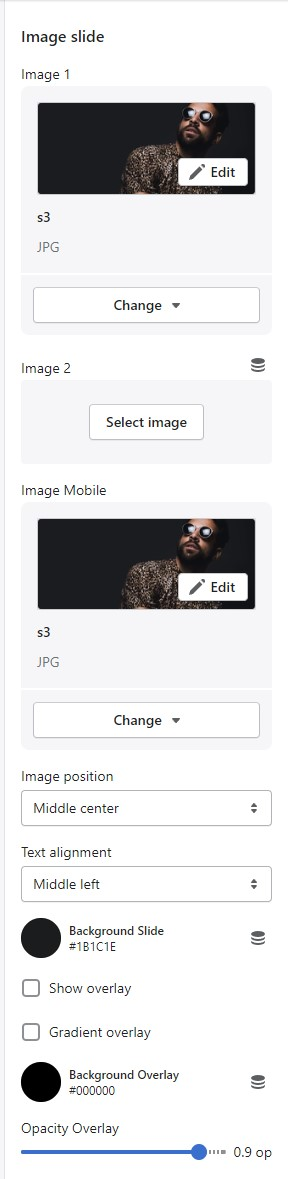
### Image
You can settings
* Image 1, Image 2, Image for mobile, Position Image, Position Text content, Background Slideshow, Overlay Image
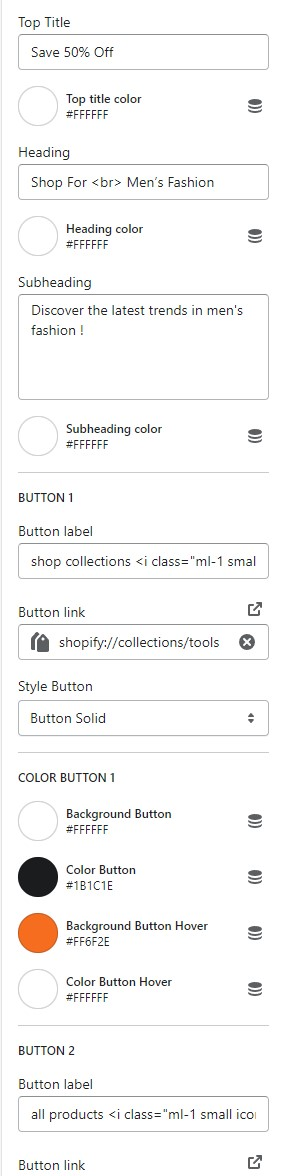
### Content Text
You can Settings
* Top Title, Heading, Sub Heading, Button1, Button 2
{% hint style="info" %}
If the text is blank Text or Button will disable
{% endhint %}